A short essay on UNIX, command lines and text interfaces
TL;DR: A short essay on the elegance and practicality of composable interfaces. AKA 'why I prefer Houdini to Maya'.
The other day I was watching the latest video by Entagma, titled Nerd Rant: Are we switching to Linux?.
At some point Manuel - in a very tranchant way - mentions that the way terminals work is mostly due to leftovers from the past, and that (compared to GUIs) text-based interfaces are not ideal from a design standpoint.
I found that particularly surprising, especially since Entagma has historically done a lot of great Houdini content, and Houdini has deep roots in the UNIX philosophy, which has been a fundamental drive in the design of most terminal applications we use today.
At some point, I used to share a similar opinion to Manuel's regarding command line tools and terminals. However, with time I radically changed my perspective, so here I have collected my thoughts on how that happened, and why now I believe that for certain tasks, terminal-based workflows are terribly elegant and efficient.
Chapter 1: Houdini was inspired by UNIX
First of all, let's quickly get some important context out of the way. The way Houdini networks are organized is very much inspired by the UNIX philosophy (since being a "certified UNIX system" requires a license, people tend to refer to UNIX-like systems, aka *nix systems).
A node path like /obj/my_geo/some_node is effectively identical to the way in which Linux (and most *nix systems) represent a file on your filesystem.
If you ever needed to refer to a node using syntax like ../some_parent_node, that's identical to the conventions used in Unix, where .. represents the idea of going to a parent directory.
On top of that, there's another important inspiration from the Unix philosophy: focusing on designing single tools that perform a single task well, and are meant to be composed together. This is the philosophy that underpins the design of all good command line tools.
In Houdini, those tools are nodes, which are further divided into contexts depending on the kind of problems they are more suited to solve (geometry problems? Surface OPerators. 2D problems? Compositing OPerators. Animation problems? CHannel OPerators. et cetera..).
Nodes have a standard way to send data to other nodes thanks to the inputs and outputs they expose. This protocol makes it possible to design nodes in isolation, only focusing on the type of input that they can work with, and on the output they generate.
An example node network in Houdini.
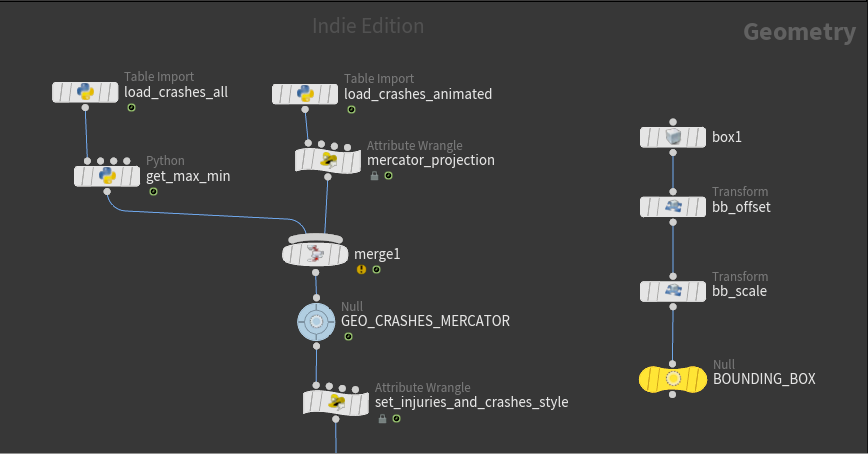
Let's also not forget that Houdini still ships a dedicated HScript command called
unix(at this point I'd say it's more of an homage than anything else!): https://www.sidefx.com/docs/houdini/commands/unix.
Chapter 2: GUIs are not superior in all cases
Just like Houdini nodes, Command Line tools also have an agreed protocol on how they should send and receive data.
This protocol involves mostly:
- Reading data from stdin (file descriptor 0)
- Writing results to stdout (file descriptor 1)
- Writing logging and errors to stderr (file descriptor 2)
To send the output (stdout) of one command to be the input (stdin) of another command, terminal users can use what's called 'pipelines'.
We only need to type one character, the pipe char: |.
The syntax is like this:
<some-command> | <some-other-command>The above terminal command just means: "send the output (stdout) of
On top of that, a user can modify the behaviour of a CLI using positional arguments and flags.
Arguments are just "words" passed in a specific order to the CLI.
Flags are arguments that are prefixed with - or --, e.g. --do-something-special and can generally be passed in any order (although this depends on the CLI, some will attribute special meaning to the order).
This fundamentally open design means that well-written CLI applications are much more portable and flexible than well-written GUI applications, because they're written for broader compatibility from the start, unlike GUI apps.
A simple example
Let's make a practical example of how we'd go about using a CLI. Suppose I have a text file with this content:
2026-05-02 Report 1 - A first look at ants populations
2026-05-30 Report 2 - Looking more in detail at those tiny little creatures
2026-06-04 report-3 - Swarms and breadcrumbs, a match made in heaven
2026-06-11 report-4 - Pheromones and brand of perfumes to avoid
2026-06-15 report-5 - Underground community-building events for the Anthropocene
2026-07-02 Report 6 - Final conclusions, and tips for effective bug sprays
Looking at it, I realise that in June somehow the formatting has been changed to be kebab-case.
I'd like to move all reports to follow kebab-case as well, for consistency.
This can be easily done in any text editor, so let's see how we'd do it from the command line.
One simple way would be to just convert Report to report-.
I can do that with a sed command. The general form is sed <some-expression> <some-file>.
To search and replace, the common expression used is s/<search-this>/<replace-with>/g (the s/ stands for "substitute", while the /g flag is to replace all occurrences "globally").
In this specific case we'd run:
sed -i 's/Report /report-/g' my-file.txt Which reads a bit like: look in my-file.txt, search all occurrences of Report and replace them with report-.
Now, imagine that we have to repeat this process for a number of files.. via a GUI you'd have to reopen different files multiple times, running the search and replace each time manually..
With sed I can just pass multiple files instead!
For example:
sed -i 's/Report /report-/g' my-file.txt my-other-file.txt yet-another-file.txtEven better, if we wanted to pass all of the files ending in .txt, we could just use the *.txt glob expression:
sed -i 's/Report /report-/g' *.txtThe shell used by our terminal (e.g. bash) would then expand the *.txt to all the file names that end in .txt, then pass that list of files to sed.
No need to open multiple files from our text editor, just a single line from our terminal and we're done!
How to learn: Man(ual) pages
You can learn what flags (the bits of the command that start with an -, like -i) are supported by a command by looking at its man pages.
This can be done via the man command (of course, even the man command has a manual page, which can be consulted via man man!).
So for example I can look up the documentation for the -i flag of sed by running man sed:
   [...]
   -i[SUFFIX], --in-place[=SUFFIX]
         edit files in place (makes backup if SUFFIX supplied)
   [...]
There's also a great website called explainshell.com that can help you make sense of existing commands you see. For example, in our case: https://explainshell.com/explain?cmd=sed+-i+%27s%2FReport+%2Freport-%2Fg%27+my-file.txt
A more complex example
Now let's suppose that I want to find a Markdown file that I edited a few months ago and I totally forgot where I saved it.
These are the things that I vaguely remember about this file:
- a) I saved it somewhere in my
~/Documentsdirectory - b) It contains the word '2026' somewhere in its filename
- c) I think I worked on it in the last month?
I can use the find command to search files on my system.
Now let's convert each bit of information I have about this file into a flag or an argument for find.
a) To search in a specific directory, I'll pass that directory to the find command.
So we'll start with find ~/Documents.
b) Now let's refine the search for Markdown files whose name contains the word 2026 anywhere in them.
Easily done via the -name flag: -name '*2026*.md'
c) Finally, let's refine by date of modification.
We can do this in many ways, but one is via the newermt flag.
For example, to say "in the last month", I can do -newermt 2026-04-01 -not -newermt 2026-04-30.
Finally, because I'm searching for a file and not a directory, I'll pass the -type f flag. If I was searching for directories I could use -type d.
find is quite an old command, and it has one nice rule: the order of the flags you give is also the order in which they will be tried on each file, as it traverses your filesystem.
So it's generally good practice to put "broad" flags (like -type f, which ignores anything but files) at the beginning to refine the search as early as possible.
All composed together I have this:
find ~/Documents -type f -newermt 2026-04-01 -not -newermt 2026-04-30 -name '*2026*.md'Which reads like: search in ~/Documents for any file written in April. Amongst those, refine the search for files with 2026 in their name.
So now let's run it:
$ find ~/Documents -type f -newermt 2026-04-01 -not -newermt 2026-04-30 -name '*2026*.md'
~/Documents/blog/valerioviperino.me/content/blog/2026-05-02-a-small-essay-on-terminal-interfaces.md
Note that the $ I added before find is just a convention that people use to represent commands that you type into a shell (some folks will use > instead, but I find > more confusing since > is an actual shell operator used to redirect output). You don't need to actually type the $. It just makes it easier to distinguish which commands you should run, and which outputs they generated.
As you can see, find found one file that matches my query, and it printed out the full path:
~/Documents/blog/valerioviperino.me/content/blog/2026-05-02-a-small-essay-on-terminal-interfaces.mdIt gets even more sophisticated.. meet xargs!
Now, let's say I just want to read the first 10 lines to see if it's really the article that I think it is.
find doesn't necessarily offer functionality for that, but it doesn't matter. After all, the design of find is to do one thing: searching the filesystem for specific files. As long as I can find some command that lets me read the content of files, I can probably use the output from find for my own needs.
One command that allows you to print the first lines of a file is the head command.
To read ten lines, I would write something like head <some-file> -n 10.
So now I need to find a way to pass <some-file> from being the output of find to being the input of head.
One first easy way (we'll see alternatives later) is to use the xargs command. xargs allows me to read the output of a command and execute another command for each line in that output.
The syntax for doing that is the following:
xargs -I <some-placeholder> <your-command>For example, if I wrote xargs -I {} head {} -n 10, we could mentally split it like this:
-
xargs -I {}this is the part where I tellxargsto look for the string{}-
I am passing the
{}string (more on this later) to the-Iflag -
As usual, to know what
-Idoes, I can read the manual page ofxargs(man xargs), which mentions the following:-I replace-str Replace occurrences of replace-str in the initial-arguments with names read from standard input. -
So here I decided that
{}will be my replace-str.- Note that there's nothing special about
{}! I could have used other text too. However, using{}is a bit of a convention amongst terminal users, it's shorter to type and sticks out quite a bit.
- Note that there's nothing special about
-
-
head {} -n 10is the command I want to run
Where xargs will see the {} in the command I gave it, it will replace it with the content of the line that we read, e.g. some-line.
So say that we have a file called my-file.txt with just 2 lines:
hello
world
Let's also meet the cat command, a very simple command that reads the content of a file and displays it, e.g.:
$ cat my-file.txt
hello
world
If we wanted to add a prefix and a suffix to each line in this file, we would run something like this:
$ cat my-file.txt | xargs -I {} echo aaa-{}-bbb
aaa-hello-bbb
aaa-world-bbb
This reads as:
For each line that you'll receive as input, run the echo aaa-{}-bbb command and replace {} with the current line read from the input. echo is another simple command that just prints to stdout whatever you give to it as input!
Okay, so hopefully this command (xargs -I {} head {} -n 10) makes more sense now.
So, putting everything together, we have this command:
$ find ~/Documents -type f -newermt 2026-04-01 -not -newermt 2026-04-30 -name '*2026*.md' | xargs -I {} head {} -n 10
+++
title = "A short essay on UNIX, command lines and text interfaces"
path = "/a-short-essay-on-UNIX-command-lines-and-text-interfaces"
date = "2026-05-02 10:00:00"

[taxonomies]
tags = ["reflections", "shell", "terminal", "gnu/linux"]
+++
As expected, it printed the first 10 lines of this blog post. I started drafting the post in April, and I wanted to publish it in early May: checks out!
Advanced usage of find: -exec
For more advanced users, find also has a built-in way to execute commands for each file that it finds, and it's via the -exec command. So you could have written the previous command also like this:
find ~/Documents -type f -newermt 2026-04-01 -not -newermt 2026-04-30 -name '*2026*.md' -exec head {} -n 10 \;The syntax is similar, where {} is the placeholder representing the current file being processed.
Note though that find requires you to manually close each command using the ; (end of command), which requires you to write \; (let's not worry about this for now, but you need to "escape" the ; character using \: this basically tells your shell that ; is meant to be used by find when running its command, not by your shell when running the find command. You can read more about this in the manual page: man find).
For beginners, I think
xargsgenerally tends to be a bit more intuitive to understand. But-execcan be faster and more powerful once you start reading the man page offindin detail.
Counting words
Now let's say we wanted to see how many words my article has so far.
Generally speaking, I can use the wc (word count) command and then pass the -w flag.
The full syntax would be:
wc -w <some-file>Again, we just need to compose the commands in the right order, et voilà:
$ find ~/Documents -type f -newermt 2026-04-01 -not -newermt 2026-04-30 -name '*2026*.md' | xargs -I {} wc -w {}
3674 ~/Documents/blog/valerioviperino.me/content/blog/2026-05-02-a-small-essay-on-terminal-interfaces.md

# Alternatively, using `-exec`:
$ find ~/Documents -type f -newermt 2026-04-01 -not -newermt 2026-04-30 -name '*2026*.md' -exec wc -w {} \;
3674 ~/Documents/blog/valerioviperino.me/content/blog/2026-05-02-a-small-essay-on-terminal-interfaces.md
Neither find, wc nor xargs were specifically written to work with each other's output.
Instead, they all speak the same lingua franca of the terminal, which means they can be assembled together just like legos (or IKEA modules, depending on your interests!).
And of course, you can keep piping the output of one command into another command as long as you want.
Searching for the content of files: grep
Searching text files for specific context is one of the most empowering aspects of the terminal.
To search for a word in a file, we can use the grep command.
For example, here I'm looking in the /usr/share/dict/linux.words file for words starting with craft (in grep, the ^ character means 'match at the beginning of the line'), then I'm sorting them alphabetically and getting the first 5 entries.
$ grep -E '^craft' /usr/share/dict/linux.words | sort | head -n 5
craft
crafted
crafter
craftier
craftiest
What about words that end in 'craft'? I can use the $ sign to ask for that instead.
Here you go:
$ grep 'craft$' /usr/share/dict/linux.words | sort | head -n 5
adcraft
aerocraft
aircraft
anti-aircraft
antiaircraft
Now try to imagine how you would have achieved the same results using a GUI application..
Maybe you will find a specialized app that lets you search files with a lot of options. But then what if you need to count the words of those files and that app doesn't have that feature? GUI apps are nice for vertical integrations on a specific domain, but they're terribly inflexible as horizontal tools because there aren't many standardized mechanisms for them to exchange data needed by the user.
Chapter 3: Having different goals doesn't make a tool 'archaic'
While not immediately simple to grasp, I'm a strong believer that terminal applications operated via text commands allow us (even in 2026!) to achieve a few important design goals that GUIs generally fail to achieve: composability, flexibility and consistency.
CLIs are not just relics of the past made by people who didn't read "good design" books, they just use mental models that optimize for different design goals compared to GUIs.
Authors of command line applications don't need to worry about doing ad-hoc integrations with specific other apps, they just need to implement support for (at least) 3 important features:
- Reading from standard in
(stdin) - Writing to standard out
(stdout) - Writing to standard error
(stderr)
On top of this, we can "redirect" both stdout and stderr to be written to other files.
Users of command line applications also only need to understand how to operate with regard to these 3 features.
Of course, complex applications should also support reading from/writing to files (and many other kinds of resources, including ones not made of text), but the fundamental mental model and the underlying protocol used will not be altered by adding this extra functionality on top.
There's a lot of Command Line Interface Guidelines available on: https://clig.dev. While not being really "official" in any way, they offer good suggestions for CLI authors.
Why text?
One interesting side effect of using text commands as a primary design medium for software is that it lends itself very well to two other goals:
- Sharing efficiency
- Ease of reproducibility
Sharing Efficiency
Most online software services allow you to send text to other people (while more complex media types might not always be supported).
Assuming shared trust, if you need to debug an issue with somebody, you can send them a short list of commands to run without having the need to send extra screen recordings or to have a screen-sharing session to (synchronously) look at the exact state of things on their computer. In certain cases, a single (well written) one-liner (a command made of only one line) is much more efficient (in terms of time and disk space!) than having to create multiple screenshots to document how to perform the same change. In my life as a software engineer working in the VFX and CG industry I had many occasions where just being able to probe the result of two or three commands saved myself (and the person on the other side) from much longer debugging sessions, with the extra bonus of being a fully asynchronous flow (mostly because I can just ssh on a target system and run commands in the background without the need to take control over the pointer and the windows of the current user). In my experience, software that was designed to be debuggable via command line tends to be easier to maintain in general. Making and proving hypotheses on the state of the system tends to be a quicker operation. On the other side, software that can only be debugged by clicking specific buttons tends to be more tedious and laborious to support and debug.
Ease of Reproducibility
In terms of reproducibility, I feel text is a great resource to allow software to keep the instructions required to operate it as deterministic and as "scientific" as possible. At the end of the day, a terminal (and a shell) are one of the most direct ways to interface with the OS without the need to be a fully fledged programmer. Due to their simpler architecture, the amount of prerequisites required by terminal applications is considerably lower than GUI applications. To me, writing a good, well tested command means focusing on what's essential to the task at hand, a little bit like writing an equation that accurately models the essence of some real world behaviour. This is why a good command should list all prerequisites (and assumptions) needed for its execution.
While it is possible to do the same prep work for screenshots and screen recordings too, people tend to get lazy when it comes to writing this kind of precise documentation required to operate GUIs. So while writing 10 lines of explicit code is generally not a lot of work (merely speaking of time involved in the preparation), creating even 4 or 5 different annotated screenshots tends to be a bit more cumbersome. Not to mention that, to cater to the widest audience possible, one should create screenshots for each different OS and ideally localize them too. You can see how the number of combinations grows quite quickly..
Epilogue
Now, I'm not saying that we should forego GUI apps altogether and go back to only writing and using CLIs.. but I do think there are some clever design techniques that we can learn from CLIs instead of just treating them as the product of some barbaric pre-civilization culture that didn't yet have the right tools to express themselves properly. For me, writing down a well documented (and composable) command means cutting down the extra "fluff" of User Interfaces (important for usability, but not important to capture the essence of a problem) and improving the signal to noise ratio by a good chunk.
In practical terms, CLIs can reach a very wide audience with little effort. Both macOS and Linux have shells that support a shared set of commands. And now with the Linux subsystem in Windows, one can run identical commands in recent versions of Windows too. This means that being capable of writing a single (POSIX-compatible) command that does the trick well might end up saving you quite a lot of repetitive documentation work..